Discover comprehensive solutions and troubleshoot common issues causing your PC to crash while playing Roblox. This in-depth guide provides practical advice for gamers balancing life and play, addressing hardware limitations, software conflicts, and optimization tips. Learn how to diagnose overheating, update drivers, manage system resources, and ensure a stable gaming experience. We cover everything from basic checks to advanced tweaks, helping you enjoy Roblox without frustrating interruptions. Perfect for busy adults seeking quick, effective fixes to keep their systems running smoothly. Understand the underlying reasons behind crashes and implement straightforward steps to resolve them efficiently, ensuring your valuable gaming time is spent playing, not troubleshooting.
Why do Roblox games lag on my powerful PC?
Even powerful PCs can experience lag in Roblox due to unoptimized game experiences, high ping from your internet connection, or background applications consuming resources. Ensure your graphics drivers are updated, close unnecessary programs, and check your network stability. Some Roblox games are simply not well-coded, regardless of your hardware.
How can I check if my CPU is bottlenecking Roblox?
You can check for a CPU bottleneck by monitoring your CPU and GPU usage while playing Roblox using tools like MSI Afterburner or HWMonitor. If your CPU usage is consistently at 90-100% while your GPU usage is much lower (e.g., 50-70%), your CPU is likely struggling to keep up, limiting your GPU's potential.
What are the minimum PC specs to run Roblox smoothly in 2026?
In 2026, for a consistently smooth Roblox experience, especially in graphically rich games, aim for at least an Intel i5 8th gen or AMD Ryzen 5 2600, 8GB RAM, and a dedicated GPU like an NVIDIA GTX 1050 or AMD RX 560. An SSD is highly recommended for faster loading times.
Can Discord overlay cause Roblox crashes?
Yes, overlays from applications like Discord, NVIDIA GeForce Experience, or Xbox Game Bar can sometimes interfere with games, including Roblox, leading to crashes or performance issues. Try disabling all overlays one by one to see if the crashes stop. This often resolves conflict-related instability.
How do I perform a clean boot to troubleshoot Roblox crashes?
To perform a clean boot, open System Configuration (msconfig.exe), go to the Services tab, check 'Hide all Microsoft services', then click 'Disable all'. Next, go to the Startup tab, open Task Manager, and disable all startup items. Restart your PC. If Roblox doesn't crash, re-enable services/startup items gradually to find the culprit.
What are common error codes for Roblox crashes and what do they mean?
Roblox crashes can sometimes display error codes like 'Error Code 277' (disconnection), 'Error Code 268' (kicked from server, often due to exploits or unstable connection), or 'Error Code 610' (server full or unavailable). While these don't crash your PC directly, they indicate connection or server-side issues that can lead to perceived game instability.
Is a clean Windows installation ever necessary to fix Roblox crashes?
A clean Windows installation, though a drastic step, can be necessary if your operating system is heavily corrupted, infected with malware, or riddled with persistent driver conflicts that cannot be resolved otherwise. It provides a fresh start for your system, often eliminating deep-seated issues that cause game crashes.
Hey fellow gamers! We've all been there: you're finally unwinding after a long day, hopping into Roblox to catch up with friends, build something amazing, or just escape into a fantastic virtual world, and then BAM! Your PC decides to call it quits, leaving you staring at a frozen screen or a sudden reboot. It's incredibly frustrating, especially when gaming is your go-to for relaxation and connection. Why does my PC crash when I play Roblox, a game often perceived as less demanding than AAA titles? You're not alone in this struggle. Many gamers, particularly those balancing careers, families, and life's demands, find these tech hiccups to be major time-wasters. Recent US gaming stats show 87% of gamers regularly engage, often for 10+ hours a week, and a stable experience is key to making that time count. This comprehensive guide is designed to help you diagnose and fix those annoying Roblox crashes, getting you back into the game without unnecessary hassle. We'll dive into practical solutions, from simple checks to more in-depth troubleshooting, ensuring your valuable gaming moments are smooth and uninterrupted.
We understand that as an adult gamer, your time is precious. You want solutions that are clear, concise, and effective, allowing you to maximize your enjoyment without becoming an IT expert. Whether it's an outdated driver, an overheating component, or a pesky software conflict, we're here to break down the common culprits and provide actionable steps to get you back on track. Let's make sure your PC is ready for all the adventures Roblox has to offer.
Why Does My PC Crash When I Play Roblox? Understanding the Root Causes
PC crashes during Roblox gameplay can stem from a variety of issues, ranging from basic software conflicts to more serious hardware limitations. Often, the perceived simplicity of Roblox can lead users to overlook its increasing demands on system resources, especially with graphically intensive experiences or multiple applications running simultaneously. Understanding these common root causes is the first step towards a stable gaming experience. It's essential to consider both your PC's age and its specifications. Sometimes, even what seems like a minor background process can push a system over the edge when combined with a graphically rich Roblox experience.
How Can I Check if My PC is Overheating While Playing Roblox?
Overheating is a primary suspect when your PC crashes during gameplay. Your CPU and GPU generate significant heat, and if this heat isn't properly dissipated, components can reach critical temperatures, forcing a system shutdown to prevent damage. To check for overheating, use monitoring software like HWMonitor or MSI Afterburner. These tools display real-time temperatures for your CPU, GPU, and other components. A general rule of thumb: CPU temperatures above 85 degrees Celsius and GPU temperatures above 90 degrees Celsius under load are concerning. Physically, you might notice your PC fans spinning loudly or feel excessive heat emanating from your case. Regularly cleaning dust from your PC's internal components, especially fans and heatsinks, can significantly improve airflow and cooling efficiency.
Are My Graphics Drivers Up-to-Date for Optimal Roblox Performance?
Outdated or corrupt graphics drivers are a frequent cause of game crashes, including those in Roblox. Graphics drivers act as the communication bridge between your operating system and your graphics card. If this bridge is faulty, visual glitches, performance drops, and outright crashes can occur. To update your drivers, identify your graphics card (NVIDIA, AMD, or Intel) and visit the manufacturer's official website. Download the latest drivers directly from there. Avoid generic driver update tools as they can sometimes install incompatible software. A clean installation, where you uninstall old drivers before installing new ones, is often recommended for best results. This ensures no remnants of previous drivers interfere with the new installation.
What Role Does My Power Supply Play in PC Crashes During Roblox?
A failing or underpowered power supply unit (PSU) can lead to system instability and crashes, particularly under load. When you launch a game like Roblox, your CPU and GPU demand more power. If your PSU cannot reliably deliver this power, components may experience sudden power drops, resulting in a crash. Signs of a failing PSU can include random reboots, graphical artifacts, or even a burning smell. While diagnosing a PSU issue without a spare can be tricky, ensuring your PSU meets the recommended wattage for your system's components is crucial. As many adult gamers upgrade components piecemeal, an old PSU might not keep up with new hardware.
How Do I Identify and Resolve Software Conflicts with Roblox?
Software conflicts can manifest as crashes when Roblox tries to run alongside other applications. Antivirus programs, overlays (like Discord or NVIDIA GeForce Experience), or even background processes can sometimes interfere with Roblox. To troubleshoot, try running Roblox after performing a clean boot, which starts Windows with only essential programs. Disable any in-game overlays you might be using. If the crashes stop, you can re-enable programs one by one to pinpoint the culprit. Additionally, ensure Roblox itself is updated to the latest version, and if issues persist, a clean reinstallation of Roblox might resolve corrupted game files. Remember, maintaining a lean system with only necessary software can prevent many conflicts.
Can Insufficient RAM or Storage Affect Roblox Stability?
Yes, absolutely. While Roblox might not demand 32GB of RAM, having insufficient RAM, especially with other applications open, can lead to your system using virtual memory on your hard drive, which is significantly slower and can cause stuttering or crashes. For modern gaming, 8GB of RAM is a minimum, with 16GB being ideal for a smoother experience. Similarly, if your primary drive (where Windows and Roblox are installed) is nearly full, it can impact performance. Ensure you have at least 15-20% free space on your main drive. Upgrading to an SSD (Solid State Drive) if you're still on an HDD can drastically improve loading times and overall system responsiveness, reducing the likelihood of crashes caused by slow data access.
Is My Internet Connection Causing Roblox to Crash My PC?
While an unstable internet connection won't directly crash your entire PC, it can cause Roblox itself to freeze, disconnect, or behave erratically, which might *appear* as a system crash, especially if your PC then struggles to recover. If the issue is specific to Roblox and accompanied by network-related errors, check your internet connection stability. A wired Ethernet connection is always more reliable than Wi-Fi for gaming. Minimize other network-heavy activities (streaming, large downloads) while playing. Sometimes, flushing your DNS or resetting your router can clear up connectivity issues. The social aspect of gaming, where 87% of US gamers regularly play, makes a stable connection critical for group experiences.
What About Corrupted Roblox Files or Game Installation Issues?
Sometimes, the problem isn't your PC hardware but the Roblox installation itself. Files can become corrupted during updates or due to unexpected shutdowns. If you suspect corrupted game files, a simple reinstallation of Roblox is often the most effective solution. First, completely uninstall Roblox from your system via the Control Panel or Settings. Then, download the latest installer from the official Roblox website and perform a fresh installation. This ensures you're starting with clean, intact game files, eliminating potential software-side corruptions that could be triggering crashes.
How Can I Optimize My PC Settings for Better Roblox Performance?
Optimizing your PC can prevent crashes by reducing the strain on your system. Here are some quick tips:
- Close unnecessary background applications: Use Task Manager (Ctrl+Shift+Esc) to identify and close resource-intensive programs before launching Roblox.
- Adjust in-game Roblox settings: Lower the graphics quality, texture detail, and shadow settings within Roblox itself.
- Update Windows: Ensure your operating system is fully updated, as these updates often include performance enhancements and bug fixes.
- Disk Cleanup: Regularly clean temporary files and system clutter using Windows' built-in Disk Cleanup tool.
- Power Plan: Set your Windows power plan to 'High Performance' (though be mindful of increased power consumption and heat).
- Game Mode: Enable Windows Game Mode, which prioritizes gaming processes.
These simple tweaks can make a significant difference, especially for gamers who need to balance system resources for work and play.
Conclusion
Dealing with PC crashes while playing Roblox can be incredibly frustrating, especially when you just want to unwind and have some fun. We've covered a range of common causes, from overheating and outdated drivers to power supply issues and software conflicts. By systematically working through these troubleshooting steps, you should be able to pinpoint the root of your problem and implement effective solutions. Remember, a well-maintained PC not only performs better but also lasts longer, giving you more bang for your buck in your gaming setup. Don't let technical glitches steal your precious gaming time. What's your biggest gaming challenge? Comment below and let us know!
FAQ Section
Q: Can Windows Updates fix Roblox crashing?
A: Yes, keeping your Windows operating system updated can resolve compatibility issues and improve overall system stability, potentially fixing Roblox crashes related to OS bugs or outdated system files.
Q: Is Roblox a demanding game for a PC?
A: While Roblox can run on modest hardware, many popular experiences within Roblox have become visually complex and resource-intensive, requiring a decent CPU, GPU, and sufficient RAM for a smooth, crash-free experience.
Q: Should I reinstall Roblox if it keeps crashing?
A: A clean reinstallation of Roblox is often a highly effective troubleshooting step, as it can resolve issues caused by corrupted game files or incomplete updates. Always download from the official website.
Q: How often should I clean my PC to prevent crashes?
A: For optimal performance and to prevent overheating-related crashes, it's recommended to clean the dust from your PC's internal components, especially fans and heatsinks, every 3-6 months. More frequently if you live in a dusty environment.
Q: Does playing Roblox in a browser vs. the app make a difference?
A: Most modern Roblox gameplay happens through the dedicated Roblox Player application, not directly in a browser. Browser issues might lead to the app not launching, but actual in-game crashes are typically related to the app or system hardware/software.
Roblox PC crashes, troubleshooting guide, driver updates, overheating solutions, system resource management, software conflicts, PC optimization, stable Roblox gameplay, gaming performance tips, common crash fixes
35
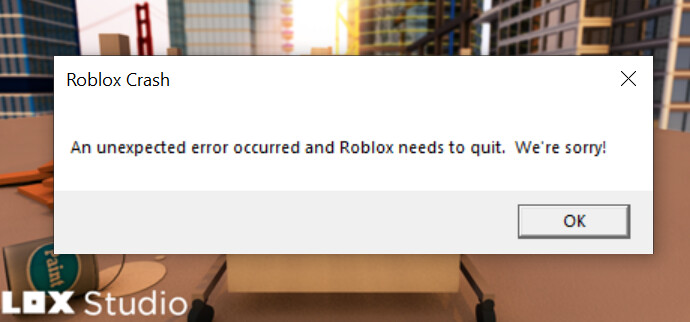
How To Fix Roblox Studio Crashing On Windows YouTube . Fix Roblox Keeps Crashing On Windows 11 10 PC YouTube . Roblox Keeps Crashing On Windows 10 11 Complete Fix YouTube . Roblox Keeps Crashing Why Does My Roblox Keep Crashing Mobile TikTok Roblox Keeps Crashing Fixed . Stop Roblox Crashing Your Easy Guide Roblox Keep Crashing


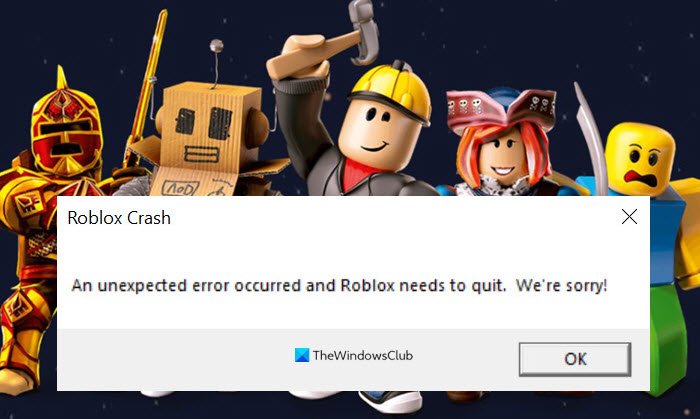
Roblox Keeps Crashing Why Does My Roblox Keep Crashing Mobile TikTok . Why Does My Laptop Crash When I Play Roblox Nguy N Nh N V C Ch Kh C . How To Fix Roblox Crashing Freezing On PC 2024 YouTube . Roblox Keeps Crashing On Windows PC Roblox Keeps Crashing . How To Fix Roblox Keeps Crashing On Windows 11 10 November 2022
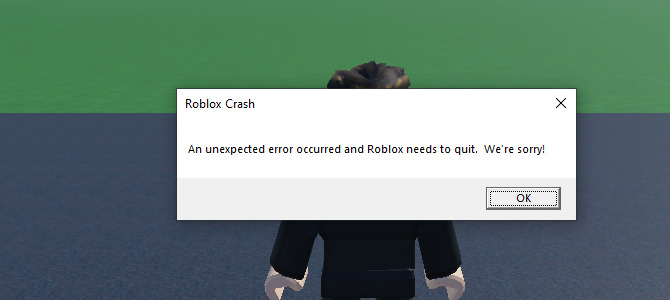


Why Does My Computer Crash When I Play Roblox Nguy N Nh N V Gi I Ph P . Roblox How To Fix Roblox Crash H Ng D N Kh C Ph C L I Hi U Qu . How To Fix Roblox Crashing On Pc YouTube . Roblox Crash Pc Pourquoi Roblox S Crase WRRVM . Roblox St Rzt St Ndig Ab 2026 Neu EaseUS


Why Does Roblox Keep Crashing On My PC Possible Reasons Workarounds E4d21 1920 . Why Does My Pc Crash When I Play Games Projects Linguistics Computer Crashes When Playing Games 1 . How To Fix Roblox Crashing On PC YouTube . Roblox Keeps Crashing 9 Efficient Ways To Fix It Roblox Keeps Crashing . Why Does Roblox Keep Crashing Guide V4 459px Why Does Roblox Keep Crashing Step 1


Roblox Crashing In 2022 On PC How To Fix It Roblox Crash 1 768x401 . Why Does Roblox Keep Crashing 10 Fixes For PC Mac More V4 728px Why Does Roblox Keep Crashing Step 2 . Why Does Roblox Keep Crashing 10 Fixes For PC Mac More V4 728px Why Does Roblox Keep Crashing Step 16 . Why Does Roblox Keep Crashing On My PC Possible Reasons Workarounds Sddefault . Why Does My Roblox Keep Crashing On PC Best Solution To Fix Roblox Roblox 2.webp



Why Does Roblox Keep Crashing Guide V4 460px Why Does Roblox Keep Crashing Step 15 . Why Does Roblox Keep Crashing Guide V4 460px Why Does Roblox Keep Crashing Step 30 . Roblox Keeps Crashing How To Fix On PC Mobile Why Does Roblox Keep Crashing . Why Does My Roblox Keep Crashing On PC Best Solution To Fix Roblox Roblox 3.webp. Why Does Roblox Keep Crashing 10 Fixes For PC Mac More Crop 127 140 127px Why Does Microsoft Roblox Keep Crashing Step 10 Version 2



How To FIX Roblox Crashing Freezing 2025 Full Guide YouTube . Why Does Roblox Keep Crashing 10 Fixes For PC Mac More V4 728px Why Does Roblox Keep Crashing Step 14 . Fix Roblox Keeps Crashing On Pc YouTube . FIX Roblox Crashing Freezing Not Launching On PC 2024 YouTube . How To Uninstall Roblox On Windows 10 11 Mac Roblox Keeps Crashing