Ever felt your PC groan under the weight of too many Steam games, even the ones you have not touched in ages? This comprehensive guide on how to delete Steam games is your ultimate resource for reclaiming precious disk space and optimizing your gaming rig. Whether you are struggling with slow performance, looking to make room for the latest must-play titles, or simply trying to declutter your digital library, we have got you covered. We understand that for busy US gamers, balancing work family and life means every minute counts and every gigabyte matters. Learn straightforward methods to uninstall games manage your storage and ensure your system runs smoothly so you can get back to what you love most gaming with friends without the lag. Dive in to discover practical tips and step by step instructions that make managing your Steam library a breeze.
How do I easily delete Steam games from my computer?
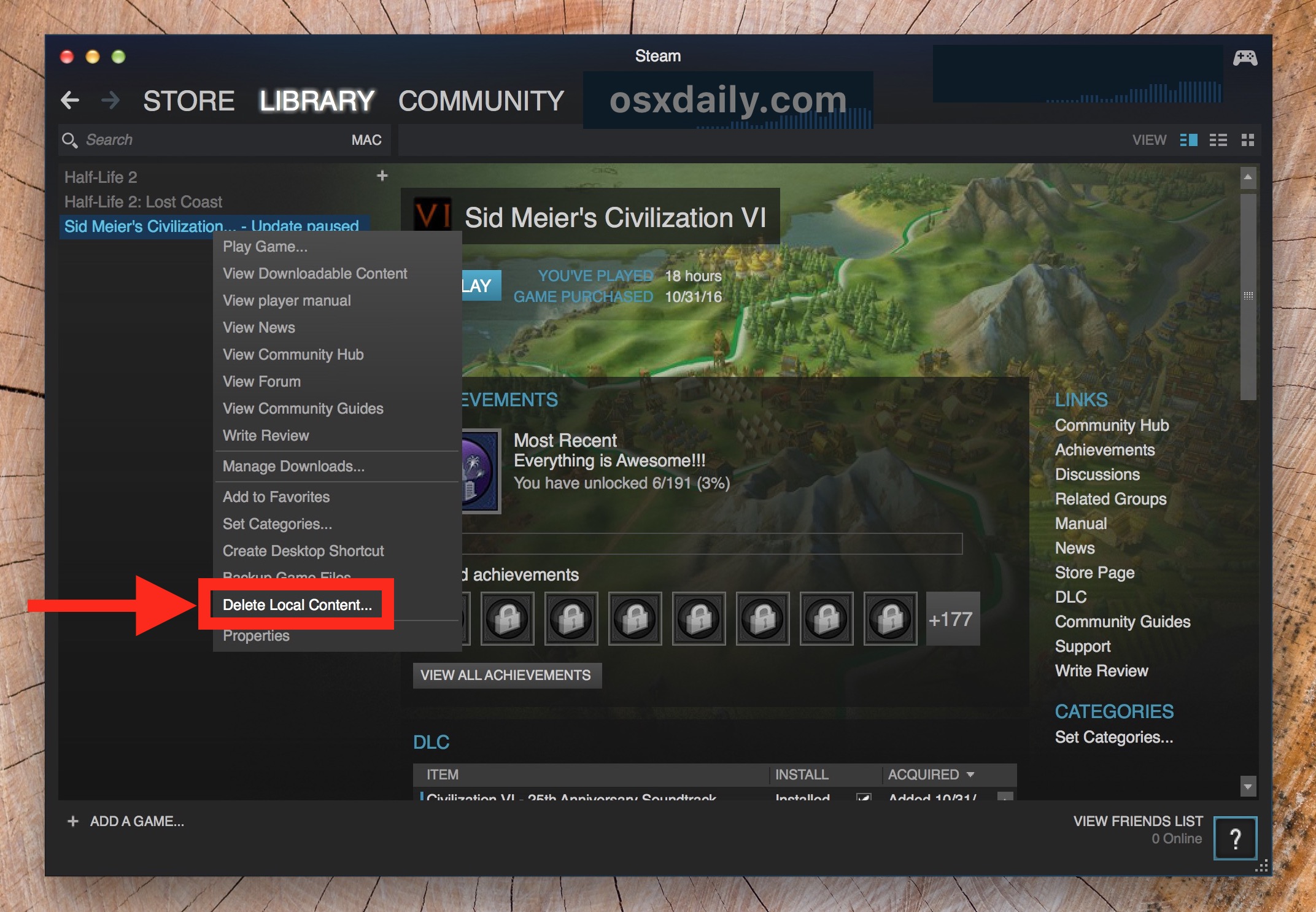
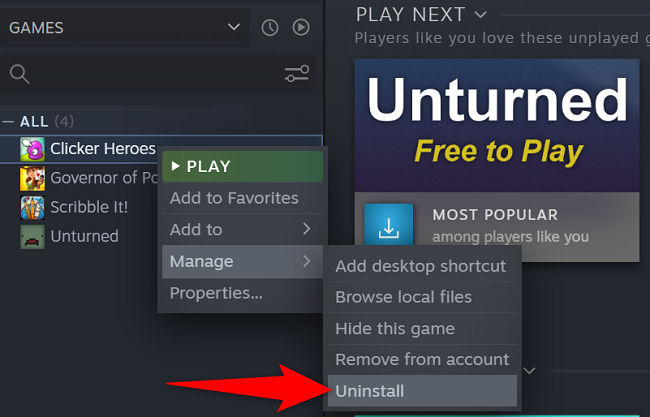
Deleting Steam games is straightforward. Open your Steam client, navigate to your Library, right-click on the game you wish to remove, select "Manage," then click "Uninstall." Confirm the prompt, and Steam will remove the game files from your hard drive, freeing up valuable space. This process is essential for maintaining optimal PC performance, especially with modern titles often consuming 100GB or more. For busy gamers balancing life and play, quick space management means more time for actual gaming.
What's the difference between uninstalling a Steam game and "removing it from my account"?
Uninstalling a Steam game simply removes its local files from your PC. The game still technically belongs to your Steam account, allowing you to reinstall it anytime without repurchasing. "Removing it from your account," however, is a more permanent action usually done via Steam Support. This completely severs your ownership, making it appear as if you never owned the game. It's rarely necessary for casual space-saving and is typically reserved for instances like unwanted gifted games or specific support issues. For most gamers, an uninstall is all you need to manage local storage.
Will deleting a Steam game erase my save data and progress?
In most cases, no, deleting a Steam game will not erase your save data. Many modern Steam games utilize Steam Cloud synchronization, which backs up your save files online. Even for games without Cloud Save, save files are often stored in separate locations like your "Documents" folder or specific app data folders, not within the game installation directory itself. While it's always a good idea to double-check a game's specific save location if you're concerned, for the vast majority of titles, your progress will be safe and accessible if you choose to reinstall the game later.
How can I quickly identify and delete large Steam games taking up too much space?
To quickly find and delete large Steam games, open your Steam client, go to "Steam" in the top-left menu, then select "Settings." In the Settings window, click on "Downloads" and then "Steam Library Folders." This will show you a list of your Steam libraries and their current disk usage. Click on a library to view its contents, sorted by size. From there, you can easily spot the storage hogs. Right-click any game and select "Uninstall" to remove it directly, making space for new experiences or system optimizations. This is a game-changer for gamers with limited SSD space.
Is there a way to delete multiple Steam games at once?
Unfortunately, Steam doesn't offer a direct "bulk uninstall" feature for multiple games simultaneously within its client. You'll need to uninstall games one by one using the right-click > Manage > Uninstall method from your Library. However, you can make the process quicker by uninstalling from the Steam Library Folders section in Settings, as described above. Alternatively, third-party uninstaller software can sometimes batch uninstall, but using Steam's built-in method is always recommended for stability and to ensure all associated files are properly removed.
Why is deleting old Steam games important for my PC's performance?
Deleting old or unused Steam games is crucial for maintaining your PC's performance, especially if you're running on an SSD with limited space. A cluttered drive can lead to slower boot times, longer load times in other games, and even system instability. Modern games demand significant resources, and leaving inactive titles installed can consume dozens, even hundreds, of gigabytes. Freeing up this space ensures your operating system and actively played games have enough room to operate efficiently, preventing lag and crashes and providing a smoother, more enjoyable gaming experience, which is key for those balancing gaming with demanding work schedules.
Can I recover a Steam game after I've deleted it?
Absolutely! Deleting a Steam game only removes its local files from your computer; it does not remove the game from your Steam account ownership. As long as you own the game on Steam, you can easily reinstall it at any time. Simply navigate back to the game in your Steam Library, click the "Install" button, and it will begin downloading the files again. Your game saves are often protected by Steam Cloud Sync, meaning your progress should be intact upon reinstallation. This flexibility ensures you can manage your local storage without fear of permanently losing your digital purchases.
Ever stare at your Steam library, a digital monument to past purchases, and feel a pang of frustration as your hard drive groans for mercy? For many US gamers, balancing a demanding job, family life, and personal commitments means gaming time is precious, and system performance cannot be compromised. With 87% of US gamers regularly diving into virtual worlds, often for 10+ hours a week, and new titles constantly vying for attention, managing your digital real estate has become more crucial than ever. This month alone, countless gamers are facing the dilemma of clearing space for exciting new releases or simply optimizing their setup.
You are not alone if you are wondering how to delete Steam games efficiently. Whether it is to boost your PC's speed, make room for that highly anticipated social or cozy game everyone is talking about, or simply declutter your digital life, knowing the ins and outs of game uninstallation is a vital skill. This guide is designed for you, the busy adult gamer who wants practical solutions without the hype. We will walk you through everything from the basic steps to advanced tips, ensuring your gaming rig stays lean, fast, and ready for your next adventure without breaking the bank on new hardware. Let us reclaim that disk space and get you back to enjoying your favorite titles, or even exploring new VR experiments, without a hiccup.
How to Delete Steam Games The Basic Uninstall Process
Learning how to delete Steam games is surprisingly straightforward, and it is the first step toward reclaiming your hard drive. This simple process removes the game files from your computer, freeing up valuable storage without impacting your account ownership. For a typical game, this means shedding dozens, if not hundreds, of gigabytes that can then be used for new installations or improving overall system responsiveness. It is a fundamental skill for any gamer who needs to manage their digital assets effectively, especially on smaller SSDs.
Here are the step-by-step instructions to uninstall a Steam game:
Open Your Steam Client: Launch Steam on your PC and log in to your account.
Navigate to Your Library: Click on the 'Library' tab at the top of the Steam window. This will display all the games you own.
Locate the Game: Find the game you wish to uninstall from your list. You can use the search bar or sort your games to make it easier.
Right-Click the Game: Right-click on the game title. A context menu will appear.
Select 'Manage': From the context menu, hover over 'Manage'.
Click 'Uninstall': In the 'Manage' submenu, click on 'Uninstall'.
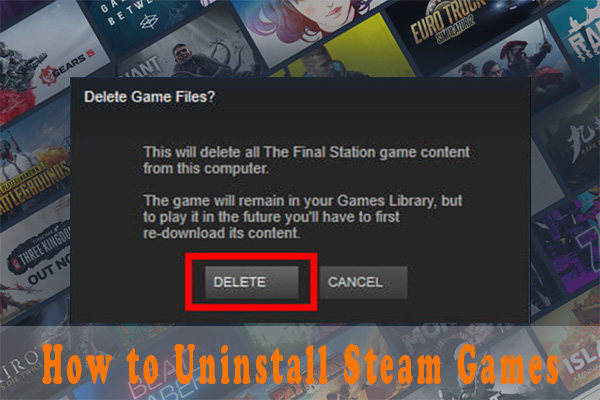
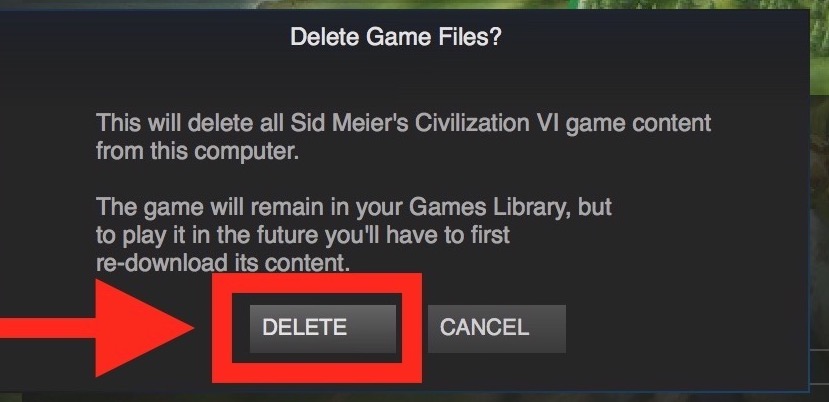
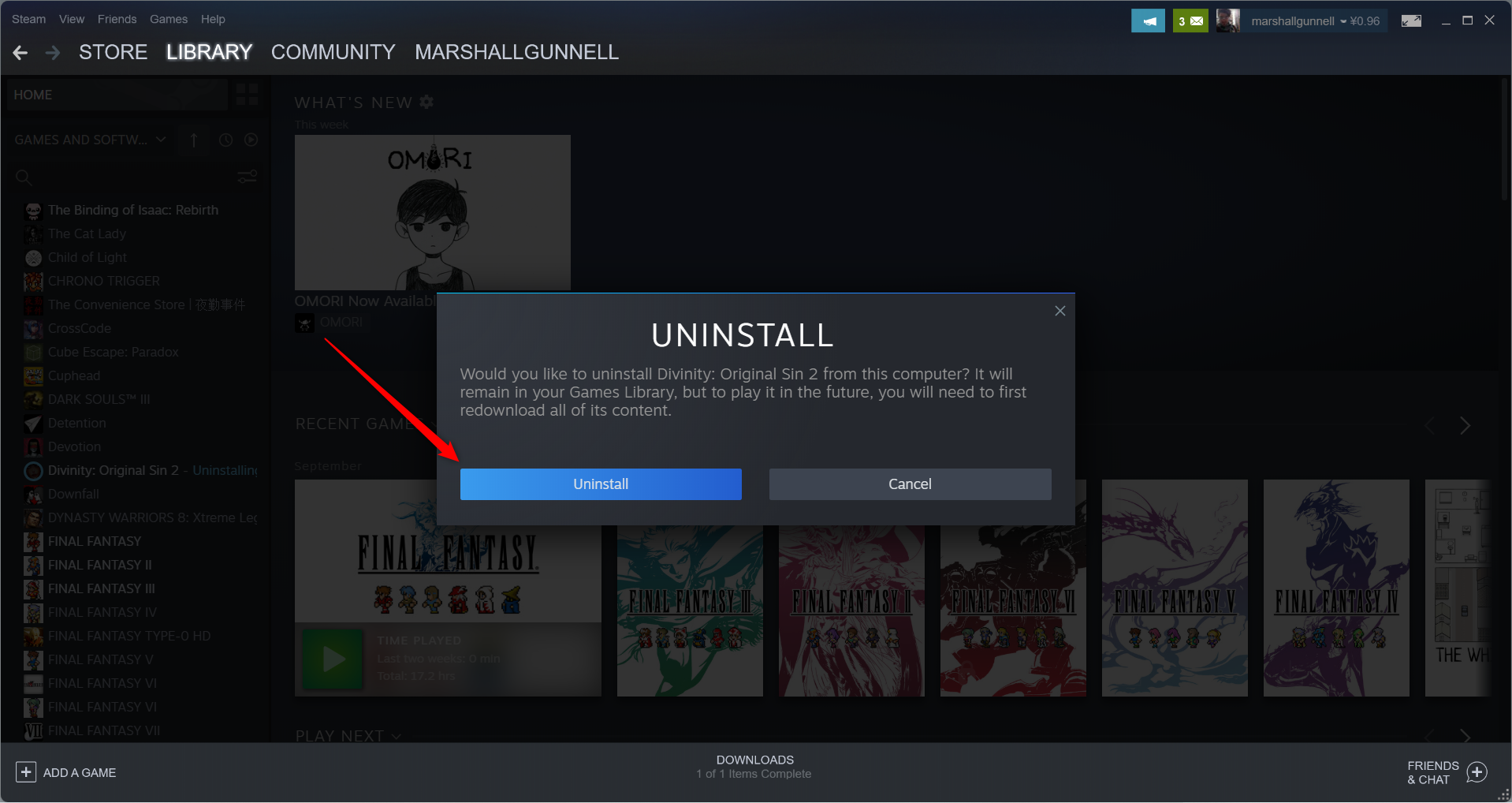
Confirm: A pop-up window will ask you to confirm if you want to uninstall the game. Click 'Delete' or 'Uninstall' to proceed.
Steam will then proceed to remove the game files from your computer. The time this takes will depend on the game's size and your system's speed. Once complete, the game will still appear in your library but will be greyed out, indicating it is not installed. You can reinstall it anytime by clicking on it and selecting 'Install'.
Why Should I Delete Steam Games from My PC?
Deleting Steam games is more than just decluttering; it is about optimizing your entire gaming experience and PC performance. As games grow larger, often exceeding 100 GB for a single title, they quickly consume valuable disk space. This is especially true for the average gamer with a few dozen titles, easily hitting the terabyte mark. A full hard drive, particularly your primary drive (C:), can lead to noticeable slowdowns in your operating system, longer boot times, and even reduced performance in the games you are actively playing. For gamers who enjoy competitive multiplayer or fast-paced action, every millisecond counts.
Beyond performance, consider the practicalities: you might need space for a new AAA title, a popular free-to-play social game your friends are urging you to join, or even other essential applications for work or creativity. Keeping only the games you actively play ensures your system runs smoothly. It also frees up resources for those budget-friendly hardware upgrades you might be considering, allowing existing components to perform at their best. Think of it as spring cleaning for your digital life; a well-managed library makes for a happier, faster PC and more relaxed gaming sessions.
What Happens When I Uninstall a Steam Game?
When you uninstall a Steam game using the client's built-in function, Steam performs a targeted removal of the game's core files, executables, and most associated data from your designated Steam Library folder. This action essentially erases the installed version of the game from your local storage. The game itself, however, is not removed from your Steam account ownership. It remains linked to your profile, meaning you can redownload and reinstall it at any point in the future without purchasing it again. This is a crucial distinction for busy gamers who might rotate through titles or want to revisit old favorites.
Key aspects of what happens include:
Local Files Removed: The primary game installation folder and its contents are deleted from your hard drive.
Disk Space Reclaimed: The storage occupied by the game is immediately freed up.
No Account Impact: Your ownership of the game, achievements, trading cards, and workshop subscriptions remain tied to your Steam account.
Cloud Saves Preserved: For most modern games that support Steam Cloud synchronization, your save data is backed up online and will be restored if you reinstall the game later.
Registry Entries Cleaned: Steam also attempts to remove relevant registry entries to ensure a clean uninstallation, though some minor residual files might occasionally remain.
How Do I Permanently Remove a Game from My Steam Library?
While uninstalling a game simply removes its local files,
Learn quick methods to uninstall Steam games. Reclaim disk space easily. Optimize PC performance by removing unwanted titles. Understand the difference between uninstalling and removing from library. Get tips for managing a growing game collection. Discover how to check game file sizes. Ensure your system runs smoothly for new game installations. Step by step instructions for both beginners and experienced users. All designed to help busy gamers efficiently manage their digital lives.
35


How To Uninstall Delete Games All At Once On STEAM Easy Tutorial . How To Delete Steam Games YouTube . How To Uninstall A Game On Steam YouTube . How To Delete Steam Games Quick Easy Guide V4 460px Delete Steam Games Step 4 . How To Delete Games On Mac Free Up Space In 2026



How To Delete Or Remove Games From Steam Account YouTube . How To Delete Games On Steam Easy Guide YouTube . How To Delete Games On Steam Deck Uninstall Games For More Storage . How To Delete Games On Mac Free Up Space In 2026 Howto Uninstall Steam Game 2 . How To Delete Game Data On Steam How To Erase Game Data YouTube


How To Delete Steam Game Save Data 2025 YouTube . How To Completely Delete Game From Steam In Windows YouTube . How To Delete All Game Data On Steam BEST Way YouTube . How To Delete Non Steam Games From Steam YouTube . How To Uninstall Steam Games Completely 3 Methods How To Uninstall Steam Games Thumbnail



How To Delete Steam Games YouTube . How To Uninstall A Game On Steam Mac Detroit Chinatown . How To Delete Game Saves From Steam Cloud YouTube . How To Delete Games On Mac Free Up Space In 2026 Howto Delete Steam Games . How To Uninstall Games From Steam How To Delete Games From Steam



How To Reset Steam Games Delete Game Data YouTube . How To Delete Steam Games Quick Easy Guide V4 460px Delete Steam Games Step 17 . How To Uninstall A Steam Game PCWorld Click Uninstall . How To Properly Uninstall Games From Steam For Space LevelUpTalk Steam Uninstall Process 02 07 2026 Cafa76ce 415f 4282 Bde9. How To Delete Uninstall Game On Steam Account PC 2023 YouTube

:max_bytes(150000):strip_icc()/steam-uninstall-ba72a88d2b3f4d319fbe9e7263bd88e9.png)

How To Delete Steam Game Saves 2026 Full Guide YouTube . Erase Steam Games A Super Simple Guide 2 Uninstall Steam Game . How To Uninstall Steam Games Steam Uninstall . How To Delete Games On PS4 2026 YouTube . How To Quickly Uninstall Steam In 3 Simple Steps 2026 WePC WePC STEAM How To Uninstall 01


How To Delete Steam Games Quick Easy Guide V4 460px Delete Steam Games Step 6 . How To Delete Games On Steam Account YouTube . How To Delete Game From Steam Library Easy Way YouTube . How To Delete Games On Mac Free Up Space In 2026 . How To Uninstall And Delete Any Steam Game YouTube